Sign in Download

The whole product

Nine screens, and what each one is for.

Every image on this page is a capture of the running desktop application on the current build. Nothing here is a mockup, a concept, or a screen we intend to build later.

01 · Timeline

The day you actually had.

The hero screen. Your real day laid out on a real time axis, one block per stretch of work, with the document or subject line that makes it recognisable later. Scroll back to any past day and it is all still there.

  • Click a block to file it, or select twenty and file them in one go
  • Add time by hand for the phone call and the drive that your computer never saw
  • Split a block when one stretch was really two jobs
  • Away time is written as away time, never billed as work
  • Search across everything you have ever recorded, from the top bar
Project Timebook timeline for Sunday July 19 showing 7 hours 41 minutes tracked and 49 minutes not yet filed to a project

02 · Insights

What your time actually did.

The summary a timesheet never gives you. How much you tracked, how much is still unfiled, how many times you got pulled away, and how long your longest uninterrupted stretch really was.

  • Time per application for the day, largest first
  • Your deepest stretch of focus, named
  • App switch count, which is usually the uncomfortable number
  • Project totals across the last seven days
Insights screen showing 7h 41m tracked, 49m not filed, 16 app switches, 45m longest focus, and a bar chart of time per app

03 · Projects

Teach it once, then stop filing.

Projects hold tasks, and both hold time. Tell Project Timebook that Excel belongs to Q3 Planning and it files that work by itself from then on, including backfilling what it already recorded today.

  • Projects and tasks underneath them
  • Auto-file rules keyed to the application
  • Running totals per project, always visible
Projects screen listing Internal, Northwind Audit and Q3 Planning with their tasks and auto-file app rules

04 · Reports

The number you put on the invoice.

Pick a range, group it the way you bill, round it the way you bill, and take it out as a file. The per-entry CSV is the integration: anything that reads a spreadsheet can read your hours.

  • Today, yesterday, last 7, last 30, this month, or any custom range
  • Group by project, task, app or day
  • Round up to 5, 6, 10, 15 or 30 minutes, or keep exact time
  • Export this report, every entry, or everything you have ever recorded
Reports screen showing 25h 01m across the last 7 days grouped by project with percentages and export buttons

05 · Client Brief

The update you owe the client, drafted.

The one feature that talks to the internet, and only when you press the button. It writes a plain client update from your filed work, using your own OpenAI API key, so the request goes from your machine straight to OpenAI and never through us. You see the exact lines it will send before anything is sent.

  • Off until you ask for it, every single time
  • Optional, and blank unless you add your own API key
  • Sends only project, task and duration lines you already filed
  • Shows you the exact payload first, so there is no guessing
  • Raw captured activity and window titles can never be included
Client Brief screen showing the previewed lines that would be sent and the draft it produces

06 · Calendar

Your meetings, without handing over your password.

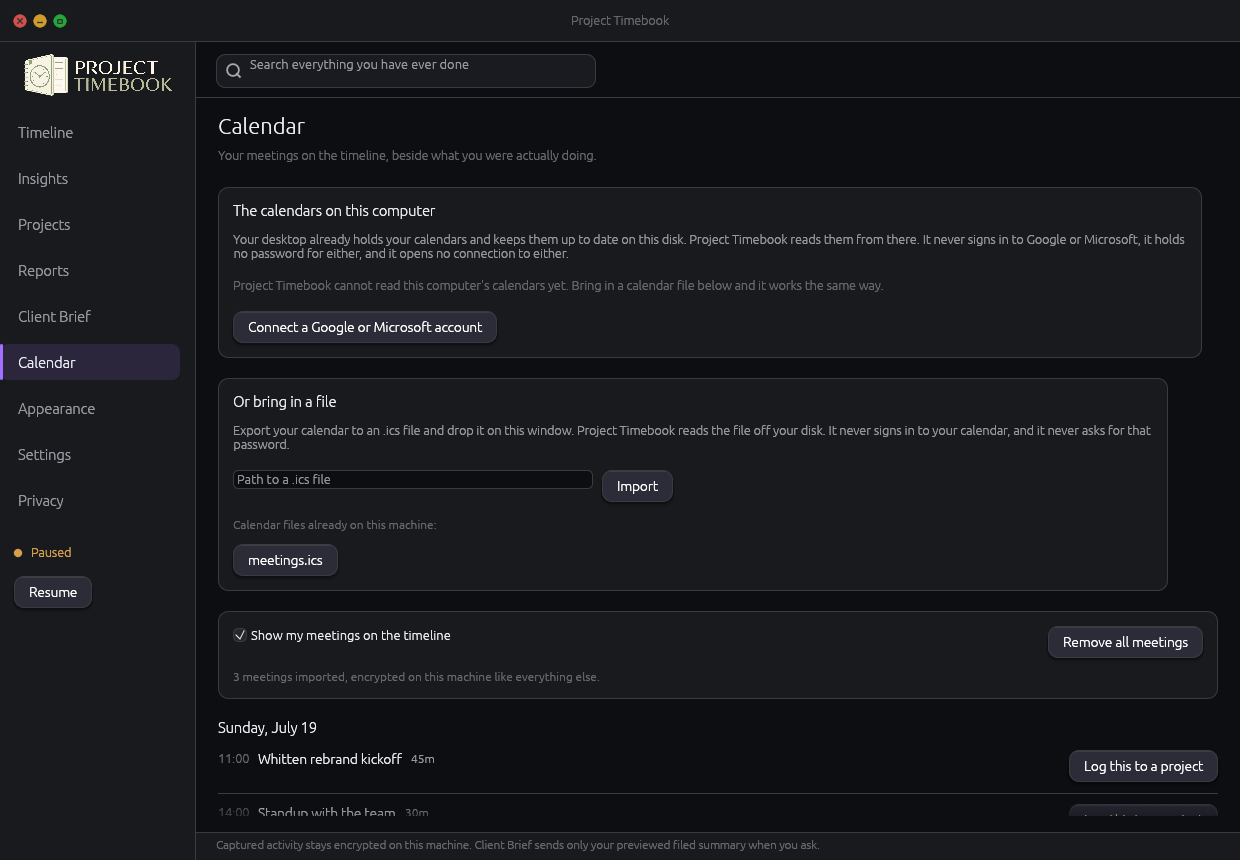
Meetings show up on the timeline next to the work. Project Timebook does not ask for your Google or Microsoft login, because it does not need it. It reads the calendar copy your desktop already keeps on this disk, or an .ics file you point it at.

  • Uses the calendars your desktop has already synced locally
  • Or imports a plain .ics file, no account involved
  • "No calendar at all" is a real answer and it is one click
  • It asks you on first run, it never just starts reading
Calendar screen showing the local calendar source choice and imported meetings

07 · Privacy

The rules, enforced before anything is written.

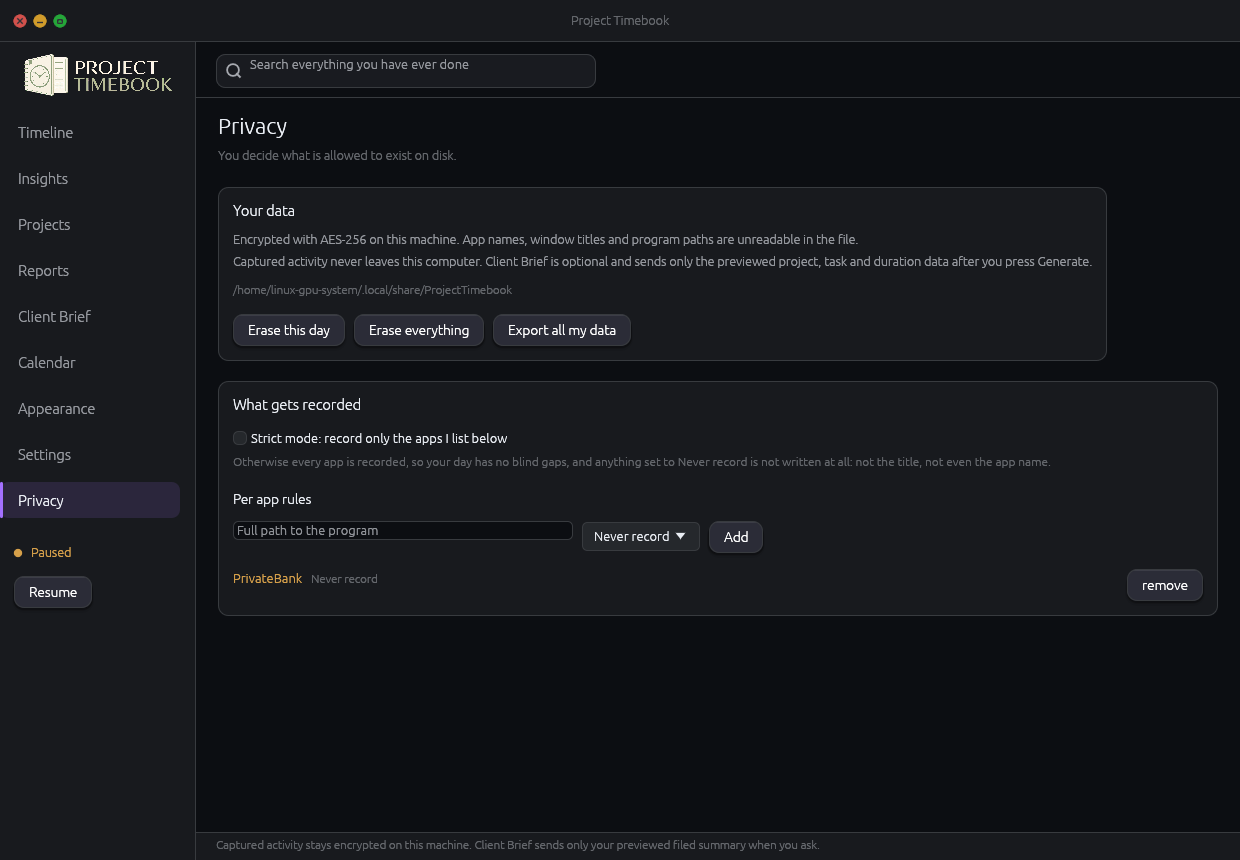
One table drives all of it. Set an app to Full, App only, or Never, and the rule is applied at the moment of capture. A Never app produces no row, no title, and no app name. There is nothing stored to hide, redact, or leak.

  • Track everything and name your exclusions, or run a strict allowlist
  • Rules are matched on the executable, not the window title
  • Delete one entry, a whole day, or erase everything
  • A delete genuinely removes it, it does not just hide it

Privacy screen showing per-application recording rules set to Full, App only or Never

08 · Appearance

Dark, light, or exactly your colours.

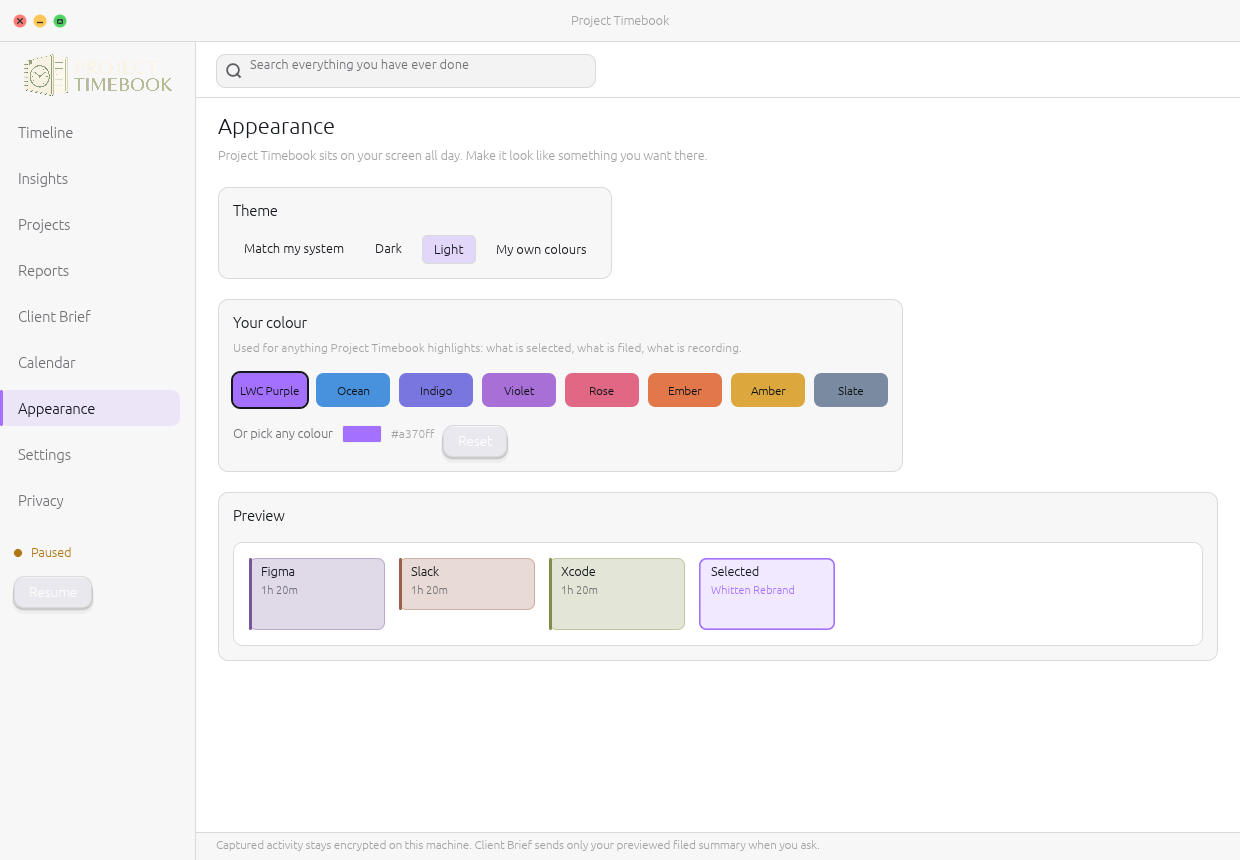
Follow the system, pick dark or light outright, or set your own background, text and accent. It is your desktop and you are going to be looking at it all day.

  • Dark, light, or follow the system
  • Custom background, text and accent colours
  • Applies to every screen instantly
Appearance screen in light theme showing theme mode and custom colour controls

09 · Settings

The knobs that matter, and no others.

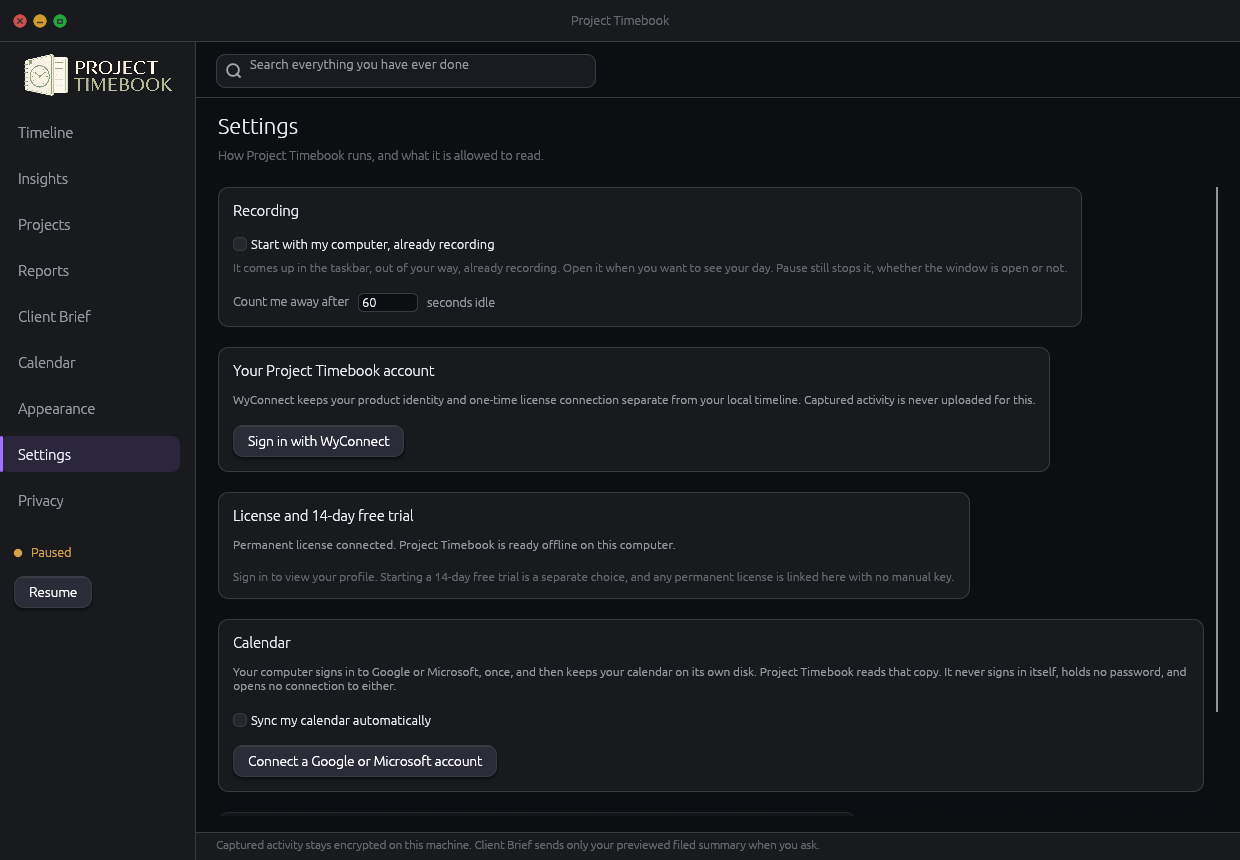
Idle threshold, start with your session, calendar source, and your data controls. Project Timebook does not have a settings screen with four hundred switches, because it does not need one.

  • Set how long away counts as away
  • Start recording quietly when you log in
  • Export everything you have, whenever you want
  • Erase everything, permanently, from the same screen
Settings screen showing idle threshold, startup, calendar source and data controls

Desktop install

Set it up once. Then get out of its way.

Windows, macOS and Linux each get a native installer, a normal desktop launch entry, and start-at-sign-in support that launches Project Timebook minimized and out of the way.

Windows

Start menu, desktop shortcut, start at sign-in

The installer stays in your Windows profile, needs no administrator prompt, and starts recording minimized when you next sign in.

Linux

Applications menu, home-folder install, start at sign-in

The guided installer keeps Project Timebook in your home folder, adds its application entry, and offers the same quiet sign-in startup.

macOS

Applications folder, native Installer, start at login

The standard Installer package places Project Timebook in Applications. It updates the app without touching your encrypted Application Support data, licence or login setting.

That is the whole thing.

No locked screens, no upgrade tier, no feature you have to email us about. What you just looked at is what you get.